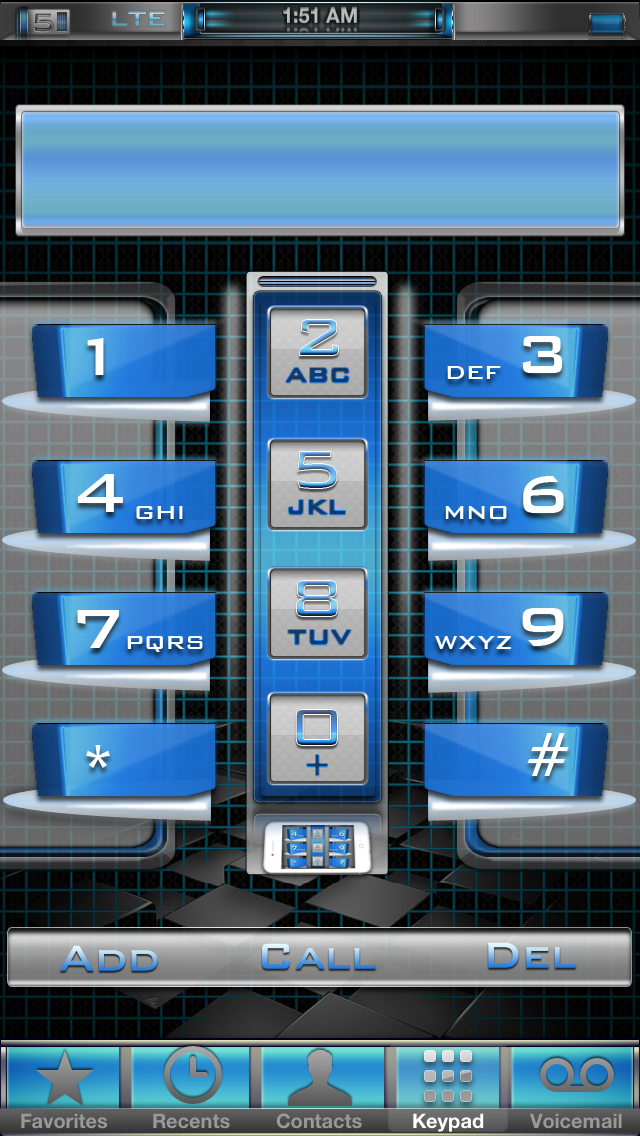
1nfect3d i5 Blue $2.99 or free with the purchase of 1nfect3d i5 Available in Cydia Soon.
This is a full theme, not an Addon!
Color Keyboard Theme is included, and requires Color Keyboard from cydia to work.
Includes Full UI, Auto Create Icons, Themed Notes, Calendar, Phone, Sms, Camera, Compass, Photos, Safari, iPod, Weather, Clock, Settings, Mail and more!
Icon PSD included. Everything shown in the Screenshots is included, more packages will be added.
Be sure to search 1nfect3d in cydia to see new packages. If you have any questions post below, email me, or follow me on twitter @Junesiphone
If you havent checked this out you should. Version 1.8 live for i5 and 1.6 live for the 4s.
Over 50 options. Tons of ways to customize miLock
Font Type - 8 fonts / also a sub menu to select from 8 different objects to fall when device is shaken + Toggle
Font Size - 8 font sizes to choose from / also a sub menu to select from 8 font colors.
Moveable Weather Elements - 9 Elements you can turn on, and move anywhere on the lockscreen.
Widgets - 4 widgets to choose from
Wallpapers - 6 wallpapers to choose from have to option to pick a theme background, or weather image
24hr or 12hr - Selectable directly from the lockscreen.
C or F - Select Celcius or Fareinheit
Font Types
Advent
CaviarDreams
Factor
Square
BankGothic
WaltoGraph
CFB
Oktober
Falling Objects
Filled Star
Outline Star
Biohazard
Music note
Leaf
Heart
Snowflake
Dollar Sign
Font Colors
blue
red
purple
green
pink
white
black
orange
Font sizes
20px
22px
26px
35px
43px
40px
52px
58px
Widgets
HTC Clock
4 Day forecast
Animate Weather (uniAW)
Slideshow
Movable Weather Elements
Temp
Icon
City
Humid
Desc
Date
Low
High
Time
Above is the Main Menu. From left to right. Select moving elements, Widgets, Backgrounds, Font Size/Color Font Type/Symbol Type, and location entry/24hr/F.
To start you will need to press the Location Entry Far right. Here you will need to Enter your zip code, Press if you entered Zip or Woeid, Select 12hr or 24hr time, and select farenheit to celcius.
Once your done press save. Your lockscreen will load and show a weather background. If it does not load go back to Location Entry, Press reset. Then retry your zipcode or woeid.
Moving elements: To add weather elements to your lockscreen, you will need to turn them on. Select the symbol below. This will open the Main Menu. If you do not see it Unlock and Lock your device for it to show. Note: Even when it isnt showing it is still able to be pressed.
Main Menu Button
Once the meun is up you will need to select
Movable Weather Elements
This will bring up this menu
Select the white buttons to turn on, and off buttons to turn off the element from being shown.
Once selected the lockscreen will remember your selection until a respring.
Once you have the items you want turned on. Close the window. Now you are able to touch these icons and move them around on the lockscreen. When you stop moving the lockscreen records the position, and is saved until a respring
Widgets
The above button takes you to the Widget menu. Which looks like this.
From top to bottom, the widgets are Clock, 5Day Forecast, uniAW, Slideshow, and Close.
HTC Clock widget.
Select this icon from the widget menu, to turn the HTC style clock on.
You can move the clock around on the lockscreen, and it will remember its location until a respring.
If you cannot move the clock, select it again from the menu.
5 Day Forecast
Select this icon from the widget menu, to turn on 5 Day Forecast. This widget is also movable, if you cannot move it, select it again from the menu. Fonts will change on this widget, as well. You will need to unlock and lock your device for the fonts and colors to change.
uniAW (One Animated Weather)
Select this icon to enable uinAW by Ian Nichol, This widget is not movable. It will sit at the top of the screen, As the day goes on the sun will move across the screen. At night the moon will come and move across the screen. When it is cloudy clouds will come across the screen, if it is raining rain drops will fall.
Slideshow
Select this icon to enable the Slideshow. For the slideshow to show. You will need to unlock and lock your device.
Close
Close is where you select what widget you want to close that you have previously selected. Press the widget menu and choose close. Another menu will popup with a list of widget. Touch one to close it.
Rotating Text
To Rotate text slide right 3 times right about the slider. This will flip the text. Continue to swipe to rotate more. Note: It will only save your position if city is showing.
Falling Objects
To initiate falling objects, you must turn it on. Go to
At the bottom you will see falling objects. Click it. Now you will be shown the falling objects menu.
Select on and select a falling object. Once selected it will reload. Now shake your device to see the falling object you chose.
Wallpapers
To change the wallpaper select
This will open the background menu. It displays 6 preset backgrounds to choose from, also my theme backgrounds, and weather only option.
Weather only will show a weather background for each condition 40+ HD wallpapers
If you would like to add your own backgrounds. put the images in Private/Stylesheets/walls
I made it where all your have to do is replace them images. The code automatically makes thumbnails for the images. They must be HD for iPhone 640 x 1136.
To set the weather get ifile. In ifile navigate to Library/Themes/1nfect3d SB Weather/Private/Weather.js
At the top of the js enter your zip code where 38671 is.
Change Slidshow Walls
Download ifile from cydia. It is free, but also has a paid version. Once installed open it up. At the top of the screen you should see a /. If you do not touch the top left button until you do. This is the beginning of your system directory(root).
First I will explain how to get your image. Go to var then mobile then media then DCIM. Click DCIM you will see 100APPLE click it. Now you see all your images from your camera roll.
Now we need to copy this image so we can use it in 1nfect3d. Find an image. Once you have found one click edit in the top right. Now you will see circles on the left hand side of everything. Click the circle on the image you want. Now at the very bottom, far right there is a clipboard icon. Click it then click Copy/Link.
Now navigate to Library/Themes/1nfect3d LS/walls or 1nfect3d Slideshow/walls.
Click edit and past the images from camera roll. You will need to rename these the same as the images that are originally in there. Exampe 1a.jpg
To add more images to the slideshow. Open the html look for
To add a sixth wall add <img src="Images/Walls/6a.jpg" /> then add an image 6a.jpg into Images/Walls. You can add as many walls as you like. BUT the more you add the more the code has to run fyi.
One of the best things about miLock, is that not one person will have the exact same layout. Below users took screenshots from there iPhone's and sent them to me. Not a one the same:)
Redesigned Clock (Is only movable once, if you want to move again select it again.
Optimized JPG's
This does not save after respring.. It is not possible.
Once again big thanks to Ian Nichol for the use of Animated Weather scripts. Weather is animated, also as the time goes on during the day. The sun will move across your screen. Later on the moon will come and do the same:) Very nice addition to #miLock
ChangeLog Fixed UISounds themes Fixed No Notification Lock Overlap May not seem like much, but I am sooo glad he did this update. Tons of emails on just these two items. So if your UISounds dont work UPDATE. If your notifications dont show on lockscreen themes. UPDATE. Note: If Cydia seems to shrink after installing this and rebooting, that is not caused by WinterBoard. That is caused by rebooting while having a tweak installed that is not fully compatible with iOS 6. Please check your installed packages for compatibility.
1ntox i5 will be in cydia soon. Here are some instructions on the setup.
Weather
The easiest way to do this is iFile. Download iFile and go to Library/Themes/1ntox SB or 1ntox LS (whichever one you are editing) Open the Widget.html or Lockbackground.html and look for var local="38671" Enter your zip code where the 38671 is, and respring your device. You can also change to Celsius from Fahrenheit just below the var locale field by changing the F to C.
What is included/winterboard setup
1ntox Icon Reflect i5 - Icons with reflection instead of nothing.
1ntox i5 Icon Labes - Styles your labels, also included Blank icon Labels
1ntox LS - Lockscreen Clock/SlideOut Forecast/Slidshow
1ntox i5 SB - Forecast with Weather image
1ntox i5 - main theme
Tweaks
*Winterboard - What runs the theme
*GridLock - Lets you move icons anywhere. (Not Updated) Use Iconoclasm
~SpringJumps (Not Updated) Theme does not require this, but there is an alt layout for it. included
~Lockscreen ClockHide - removes the clock on the lockscreen
~iFile - Used to change the zip code to your zip code
~Color Keyboard - You need to have colorkeyboard for the keyboard theme to work.
Slideshow
To add your own pictures to the LS. Go to Library/Themes/1ntox LS NA/YourImages In the YourImages folder you will see walls numbered wall1 wall2 etc to wall 5. Take your .png files (640 x960 perferred) and replace the current wallpapes.
SpringJumps or PageJumps
Open the Springjump app and select jump icons. Here you will see all the icons with
there corresponding Toggle. Toggle 0-3 on and the rest off. You can also change the name of the springjump by selecting
Page 0 and entering a new shortcut name. The pages are setup 0-Home 1-Net 2-Tools 3-Media. Once you have your springjumps on, and named, put them in the dock. 0-3 Meaning 4 springjumps will be in the dock. Go into Library/Themes/1ntoxi5 and change the PJ name wallpaper to Wallpaper@2x.png this will make it the default wall. If PageJumps are released I will add the blank icons for it.
This one is amazing. Starting with a Lockscreen created by:Jokerg7. Which is contrived of some amazing HTML/JS coding. Features a beating bAdHead along with a clock. On the edges are tabs you can pull out. Left side shows a forecast, and the right side shows a slideshow
Onto the springboard is an amazing interface. Providing you with a mixture of blue, and black. Now on the iPhone 5 you have 10 icon placements on the right side of the screen. Also 2 places for folder under the forecast.
The original version is set for springjumps. I do have a working version of PageJumps from Pathkiller, but this time around I will release with the stock wall. No springjumps, but the option will still be there;)